AI Summaries
Most visual diff tools give you a red-pixel overlay and leave you to figure out what changed. RegressionBot clusters changed pixels into labeled regions (A, B, C…), crops each one at full resolution, and produces one plain-English sentence per region — so you can read a six-line summary instead of hunting through screenshots.
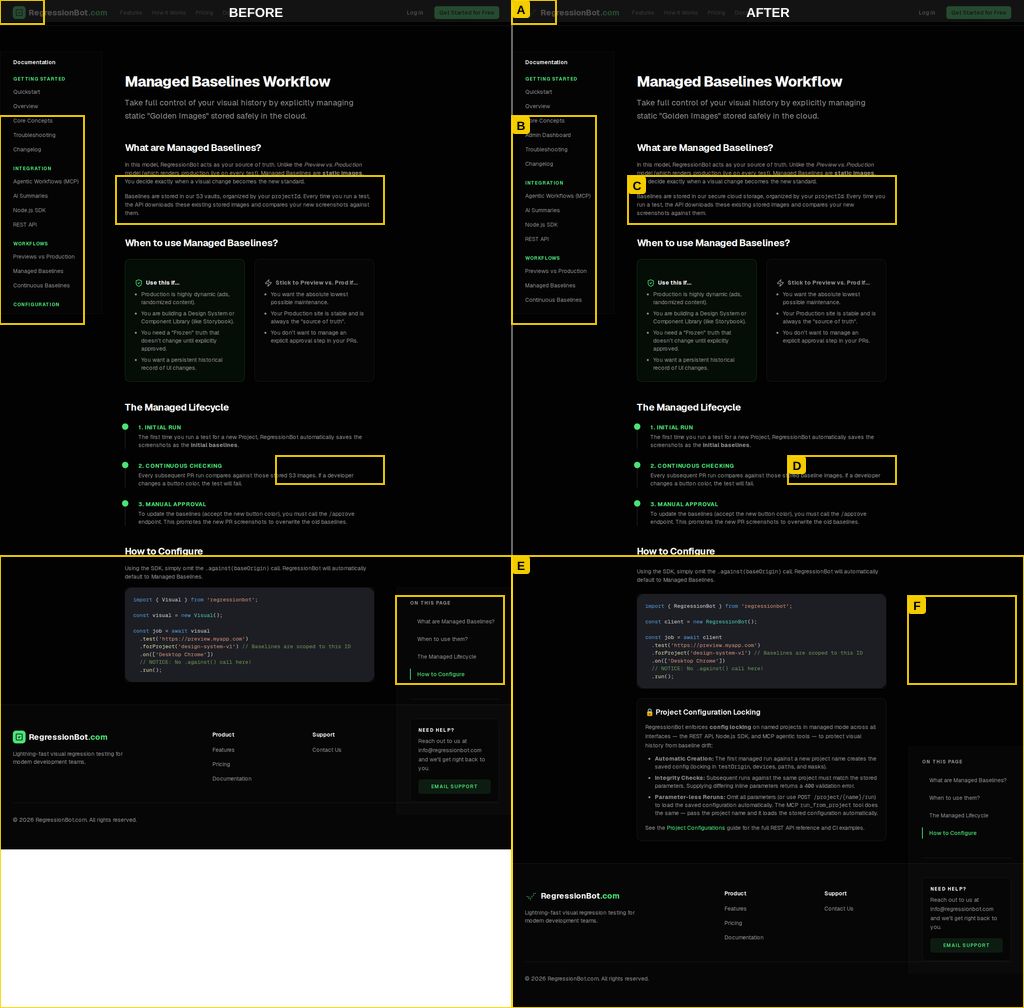
Minimap view: BEFORE (left) and AFTER (right). Yellow boxes A–F each correspond to one sentence in the AI summary below.
How it Works
After capturing before and after screenshots, RegressionBot runs three steps before producing a summary.
Cluster
Changed pixels are grouped into discrete regions. Adjacent or nearby pixels that belong to the same visual element are merged into one cluster rather than treated as separate changes.
Label
Each cluster gets a letter (A, B, C…). The letter appears as a yellow badge on the minimap and in the top-left corner of the AFTER panel in every cropped detail image, so you always know which sentence refers to which part of the page.
Summarize
The AI receives the full-resolution before/after/diff crop for each labeled region and writes one precise sentence describing what changed. Exact text, link names, and identifiers are quoted directly from the pixels.
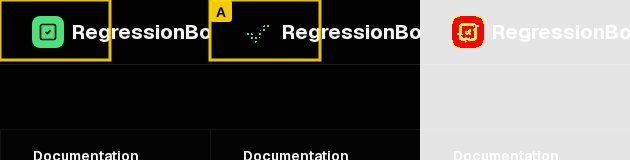
Region A — LEFT: before, MIDDLE: after (yellow “A” badge top-left), RIGHT: diff. The AI reads all three panels before writing its sentence.
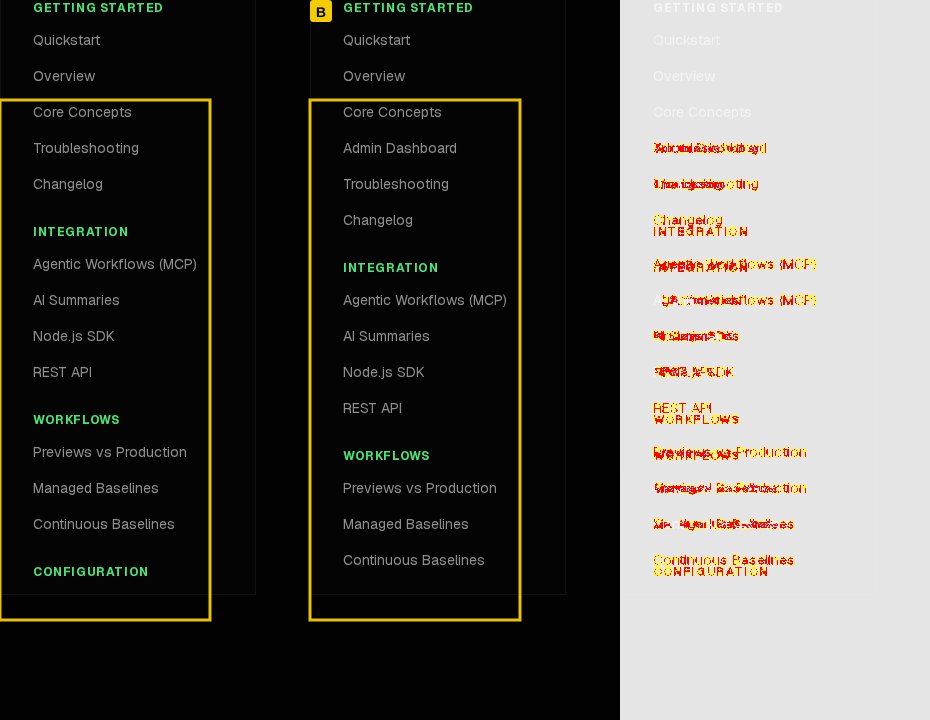
Region B — the AI reads the exact link text from the full-resolution crop and quotes it in the summary.
Example Summary
The regressionbotSummary field is a plain string — one line per labeled region, each line beginning with the letter in bold. This is the actual output for the six-region job shown above.
- AIn the top-left header, the logo icon changed from a green checkmark to a red square with a white symbol.
- BIn the left sidebar under "Core Concepts", an "Admin Dashboard" link was added.
- CIn the main body paragraph, text changed from "S3 vaults" to "secure cloud storage".
- DIn the main body paragraph, text changed from "stored S3 images" to "stored baseline images".
- EIn the main content area, a "Project Configuration Locking" section with new content and code was added.
- FIn the "ON THIS PAGE" sidebar, the "How to Configure" link now has a green left border.
In most cases, reading the summary is enough to approve or escalate a job. The cropped detail images and minimap are available if you need visual confirmation.
Reflow Intelligence
Reflow is what happens when inserting or removing content shifts downstream elements — a new block added mid-page pushes everything below it downward. Pixel-diff tools can't distinguish this shift from a real change.
Other tools
Flag the entire lower half of the page as changed — often dozens of regions — because every displaced element is in a different pixel position than the baseline.
RegressionBot
Detects that content below the insertion point shifted uniformly and labels only the inserted content as region A. Elements that moved but did not change are not reported as regressions.
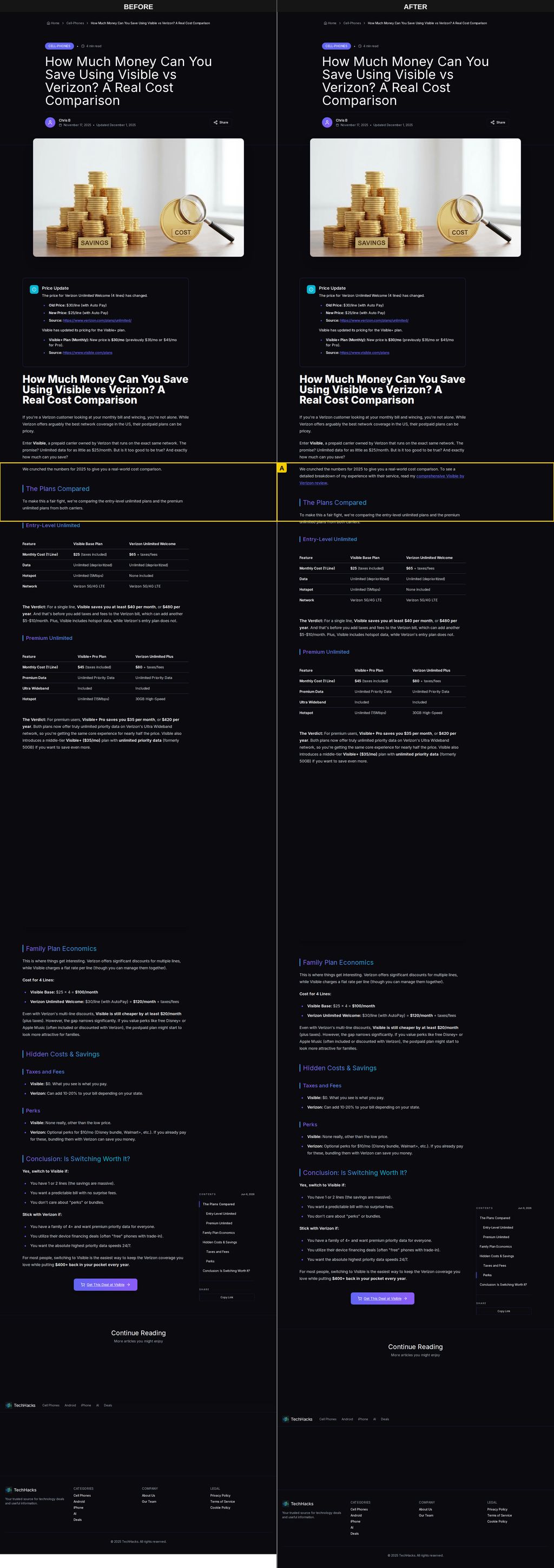
A paragraph was inserted mid-page. One region (A) is labeled. The content below it shifted down but is not flagged.

Region A crop — the AI describes only the inserted content, not the downstream shift.
Using Summaries
COMPLETED status before the summary is ready. Poll until summaryStatus is "COMPLETE" or "NONE", or until job status is "FAILED". A status of NONE means no regressions were found — the field will not be populated, and that is expected. If the job fails, summaryStatus will not advance — stop polling and check the job status field for the failure reason.The regressionbotSummary field is available wherever job results are returned.
REST API
Poll GET /job/{jobId} every 2–3 seconds until summaryStatus is "COMPLETE" or "NONE", or job status is "FAILED". NONE means no regressions were found — skip the summary call. If the job fails, summaryStatus will not advance — stop polling and handle the failure. If COMPLETE, call GET /job/{jobId}/summary. Each item in the regressions array includes regressionbotSummary, diffUrl, baselineUrl, and currentUrl. See the API reference for the full response schema.
Node.js SDK
waitForCompletion() waits for both the job and the AI summary to finish before returning. Access regressionbotSummary on each regression result:
import { RegressionBot } from 'regressionbot';

const client = new RegressionBot(); // reads REGRESSIONBOT_API_KEY from env
const job = await client.forProject('my-project').run();

await job.waitForCompletion(); // waits for both job and AI summary
const summary = await job.getSummary();
for (const r of summary.regressions) {
  console.log(r.regressionbotSummary);
  // **A**: In the top-left header, the logo icon changed from a green checkmark...
  // **B**: In the left sidebar under "Core Concepts", an "Admin Dashboard" link was added.
}
MCP
Poll get_job_status until summaryStatus is "COMPLETE" or "NONE", or job status is "FAILED". NONE means no regressions — stop polling and skip the summary call. If the job fails, summaryStatus will not advance — stop polling and handle the failure. If COMPLETE, call get_job_summary. The tool filters out incomplete summaries automatically — if you call it before summaryStatus is ready, the regressionbotSummary field will not appear in the response.
Dashboard
Open any completed job in the dashboard. Each regression is shown with its letter label, three-panel crop, and summary sentence inline. The summary appears automatically once summaryStatus is complete — no manual refresh needed.
Short Screenshot URLs
To make reviewing visual summaries as frictionless as possible, RegressionBot returns shortened, clickable redirect links for all screenshot fields (such as baselineUrl, currentUrl, and diffUrl).
Instead of cluttering your terminal logs or CI pipeline stdout with 600-character pre-signed URLs, you receive clean, 50-character clickable links:
Links are valid for 1 hour after generation — long enough to paste into a PR comment, Slack message, or CI log and open later. Clicking the link generates a fresh pre-signed image URL on the fly, so there is no separate expiry to track.